Image { source: @image-url("mini-banner.png");}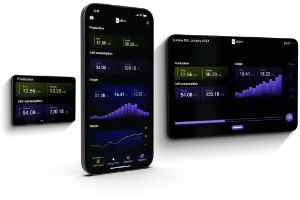
使用 Image元素显示图像。
##属性
colorize
画刷 默认:一个透明的画刷
设置后,图像将用作 alpha蒙版,并以给定的颜色(或带有渐变)绘制。
Image { source: @image-url("slint-logo-simple-dark.png"); colorize: darkorange;}
horizontal-alignment
枚举 ImageHorizontalAlignment 默认:center
图像在元素内的水平对齐方式。
ImageHorizontalAlignment
此枚举指定源图像的水平对齐方式。
center:将源图像在Image元素内居中对齐。left:将源图像在Image元素的左侧对齐。right:将源图像在Image元素的右侧对齐。
vertical-alignment
枚举 ImageVerticalAlignment 默认:center
图像在元素内的垂直对齐方式。
ImageVerticalAlignment
此枚举指定源图像的垂直对齐方式。
center:将源图像在Image元素内居中对齐。top:将源图像在Image元素的顶部对齐。bottom:将源图像在Image元素的底部对齐。
##图像平铺
horizontal-tiling
枚举 ImageTiling 默认:none
图像如何水平平铺。
ImageTiling
此枚举指定源图像将如何平铺。
none:源图像不会平铺。repeat:源图像将重复以填充Image元素。round:源图像将重复并缩放以填充Image元素,确保重复次数为整数。
vertical-tiling
枚举 ImageTiling 默认:none
Image { width:400px; height:400px; source: @image-url("slint-logo.png"); horizontal-tiling: repeat;}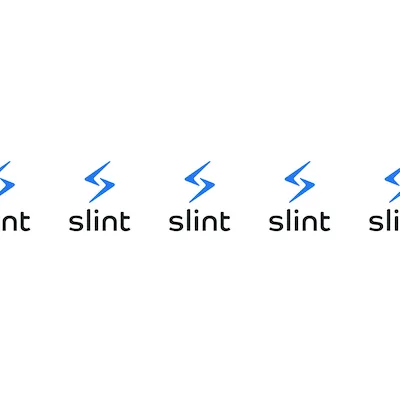
Image { width:400px; height:400px; source: @image-url("slint-logo.png"); horizontal-tiling: round;}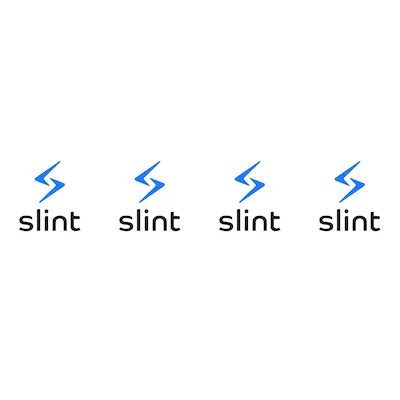
Image { width:400px; height:400px; source: @image-url("slint-logo.png"); vertical-tiling: repeat;}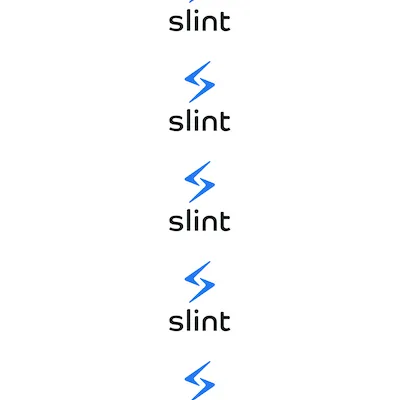
Image { width:400px; height:400px; source: @image-url("slint-logo.png"); vertical-tiling: round;}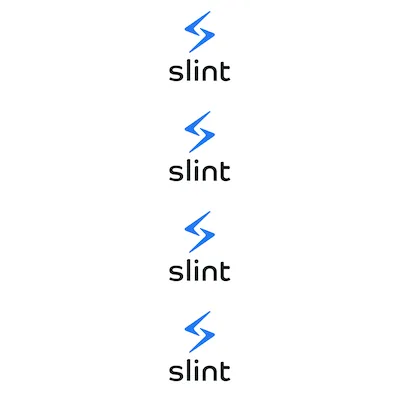
Image { width:400px; height:400px; source: @image-url("slint-logo.png"); vertical-tiling: round; horizontal-tiling: round;}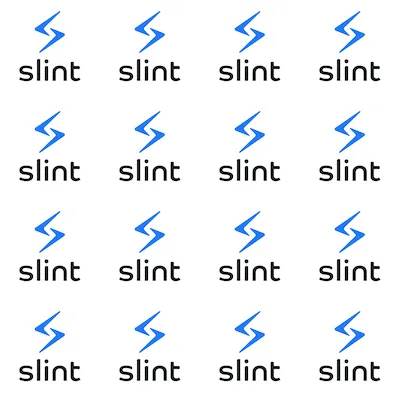
ImageTiling
此枚举指定源图像将如何平铺。
none:源图像不会平铺。repeat:源图像将重复以填充Image元素。round:源图像将重复并缩放以填充Image元素,确保重复次数为整数。
image-fit
枚举 ImageFit 默认:当 Image元素是布局的一部分时为 contain,否则为 fill``
Image { width:200px; height:50px; source: @image-url("mini-banner.png"); image-fit: fill;}
Image { width:250px; height:40px; source: @image-url("mini-banner.png"); image-fit: contain;}
Image { width:250px; height:250px; source: @image-url("mini-banner.png"); image-fit: cover;}
Image { width:400px; height:400px; source: @image-url("mini-banner.png"); image-fit: preserve;}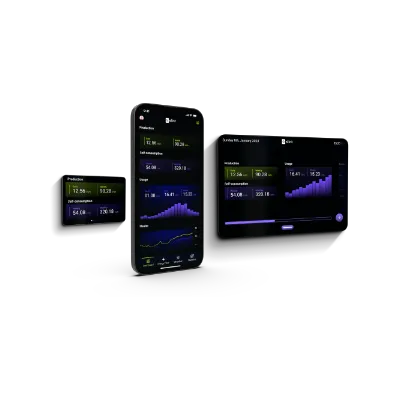
ImageFit
此枚举定义源图像或路径如何适应 Image 或 Path元素。
fill:缩放并拉伸源以适应元素的宽度和高度。contain:缩放源以适应元素的尺寸,同时保持纵横比。cover:缩放源以覆盖元素的尺寸,同时保持纵横比。如果纵横比不匹配,源将被裁剪以适应。preserve:保持源在逻辑像素中的大小。源仍将按应用于窗口中所有元素的缩放因子进行缩放。任何额外的空间都将留空。
image-rendering
枚举 ImageRendering 默认:smooth
Image { width:800px; source: @image-url("mini-banner.png"); image-rendering: smooth;}
Image { width:800px; source: @image-url("mini-banner.png"); image-rendering: pixelated;}
ImageRendering
此枚举指定源图像将如何缩放。
smooth:使用线性插值算法缩放图像。pixelated:使用最近邻算法缩放图像。
##源属性
source
图像 默认:空图像
image 类型是对图像的引用。它使用 @image-url("...")构造定义。 @image-url 函数内的地址必须在编译时已知。
Slint 在以下位置查找图像:
1.绝对路径或相对于当前 .slint 文件的路径。 2.编译器用于查找 .slint 文件的包含路径。
还可以从 data: URI加载图像,内容可以是 base64编码或 URL编码的。 例如:@image-url("data:image/png;base64,iVBORw0KGgo...")。
使用 source.width 和 source.height 属性访问 image 的源尺寸。
export component Example inherits Window { preferred-width:150px; preferred-height:50px;
 in property <image> some_image: @image-url("https://slint.dev/logo/slint-logo-full-light.svg");
Text { text: "The image is " + some_image.width + "x" + some_image.height; }}// 九切片缩放export component Example inherits Window { width:100px; height:150px; VerticalLayout { Image { source: @image-url("https://interactive-examples.mdn.mozilla.net/media/examples/border-diamonds.png", nine-slice(30303030)); } } }}使用 @image-url宏指定图像的路径。
source-clip-x
整数 默认:0
source-clip-y
整数 默认:0
source-clip-width
整数 默认:source.width - source.clip-x
source-clip-height
整数 默认:source.height - source.clip-y
源图像坐标中的属性,用于定义渲染的源图像区域。 默认情况下,整个源图像可见:
无障碍
###替代文本
考虑通过设置 accessible-label 属性为你的图像提供替代文本描述:
Image { width:100px; height:100px; source: @image-url("slint-logo.png"); accessible-label: "Slint logo";}为辅助技术用户过滤掉图像
默认情况下,图像的 accessible-role 属性设置为 image。 如果你的图像是纯装饰性的,不传达任何信息, 考虑将其从无障碍树中移除:
Image { source: @image-url("mini-banner.png"); accessible-role: none;}